
CatchLight Help
How every part of CatchLight works, and straight answers to what photographers ask me about it.
Quick answers
- What is CatchLight?
- CatchLight is a private CRM and shoot planner for photographers on iPhone, iPad and Mac. It’s on the App Store as CatchLight: Shoot Planner. It keeps your clients, shoots, payments, expenses, mileage, gear and a pose library on your own devices and in your own iCloud. I’m Amer Khalid, a portrait photographer in Frisco, Texas, and I built it for photographers like me.
- Is CatchLight free?
- Yes. Every feature is in the free plan, which only caps how much you can add: 20 clients, 20 new shoots a year, and 20 each of poses, templates, notes, goals and inventory items. Expenses, mileage and payments are never capped. CatchLight Pro lifts every cap for $19.99 a year.
- Does CatchLight need an account or an internet connection?
- No account, and no signal. Everything works offline. CatchLight only goes online to sync between your own devices through iCloud, to find a shoot’s location on the map once, and to talk to the App Store if you subscribe.
- Can you see my clients or my photos?
- No. There’s no server of mine and no analytics. Your data lives on your devices and in a private database in your own iCloud account, which I can’t open. The privacy policy has the details.
- Is CatchLight on Android or Windows?
- No. It runs on iPhone and iPad with iOS 26 or later, and on Mac with macOS 26 or later. One download covers all three, and so does one CatchLight Pro subscription.
- Does CatchLight do contracts, invoices or online booking?
- No, on purpose. CatchLight is your private back office, and nothing in it is made for clients to see. Keep sending contracts, invoices and galleries from the platform you already use. CatchLight keeps the gallery link, the date you promised it, and every payment against the shoot.
- Does it work with Pixieset, Pic-Time or ShootProof?
- It sits next to them. Paste any gallery link onto a shoot and CatchLight keeps it with the delivery date you promised. It doesn’t connect to those services or read anything from them.
- Does CatchLight store my client galleries?
- No. It isn’t a gallery or a photo backup. The only photos in CatchLight are the ones you add to it: pose references, moodboard images, receipts and photos of your gear.
- What happens to my data if I cancel CatchLight Pro?
- Nothing gets deleted. Everything you added stays, and you can still edit it, even past the free plan’s caps. You just can’t add more of something until you’re back under its cap or you subscribe again.
Getting started#
Find your way around#
CatchLight opens on a list of sections: Clients, Shoots, Money, Inventory, Poses, Templates, Notes and Goals. Under them, a Settings group holds Reminders, Tasks, Privacy, Backup and CatchLight Pro. On iPad and Mac that list is the sidebar.
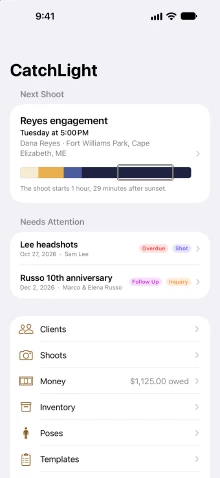
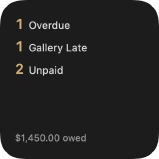
On iPhone, the top of the first screen shows your next shoot with its light, and Needs Attention: shoots with a payment overdue, a gallery past the date you promised, money still owed, or an inquiry to follow up. The Money row says what you’re owed.
When this guide says Settings › Backup, it means that Settings group inside CatchLight. Your iPhone’s own Settings is called the Settings app.
What to set up first#
Nothing, really. There’s no account and no login. A good first half hour:
- Add a client, or bring a few in from Contacts.
- Book a shoot for them with a place, so it shows its golden hour.
- Add a starter pose pack and put a few poses on that shoot’s checklist.
- Switch on the reminders you want in Settings › Reminders.
- Export a backup from Settings › Backup and keep the file somewhere that isn’t your phone.
Deleting things#
Swipe a row to delete it on iPhone or iPad, or tap Select on any list to delete several at once. CatchLight always asks first and says what goes with it. Deleting a client also deletes their shoots and notes, and it calls out any shoot that hasn’t been paid.
Clients#
Add a client#
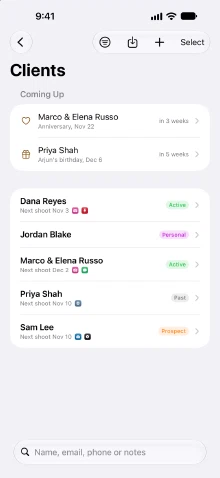
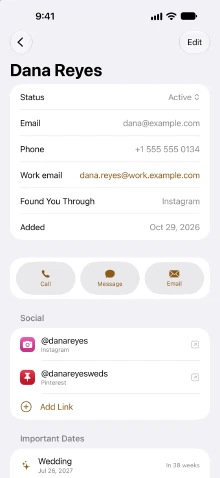
Clients › +. A client has a status (Prospect, Active, Past or Personal), an email and phone plus as many extra ones as you need, each with a label, and up to 12 social profiles. Paste a profile link and CatchLight keeps just the handle. Tapping a profile opens it in that network’s app.
How They Found You records the lead source (Instagram, Google, a referral and so on), with the client who referred them. Money uses it to show which sources actually book. A client’s page also lists every shoot you’ve done for them and your notes about them.
How do I import clients from Contacts, Google or a CSV?#
Clients › Import Contacts, then pick a source:
- Apple Contacts reads the address book on your device.
- CSV or vCard File takes an export from Google Contacts, Outlook or iCloud.
For Google Contacts, open contacts.google.com, choose Export, pick Google CSV or vCard, and choose that file in CatchLight. There’s no account to connect and nothing leaves your device.
You see everyone before anything is imported. Likely duplicates are found and unticked for you, and you choose who comes in. Everyone in one import starts with the status you pick, Prospect unless you change it. Every email and phone number comes along, plus birthdays and anniversaries, and social profiles and websites become links. On the free plan the summary tells you if anyone didn’t fit under the 20-client cap.
Birthdays, anniversaries and Coming Up#
Add Important Dates on a client’s page: a birthday, an anniversary, a wedding, a due date. Coming Up, at the top of the client list, shows the ones in the next six weeks, and the Important Dates reminder nudges you six weeks ahead. That’s your window to offer a session.
Discreet clients#
Switch on Discreet in a client’s editor and their name and their shoots’ titles stay off notifications, your calendar, the widgets, the Lock Screen, Siri’s answers and Spotlight. A widget or Lock Screen shows their shoot as “Session” and nothing else. It’s for a boudoir client, or anyone who’d rather nobody glancing at your phone knew.
Shoots#
Book a shoot#
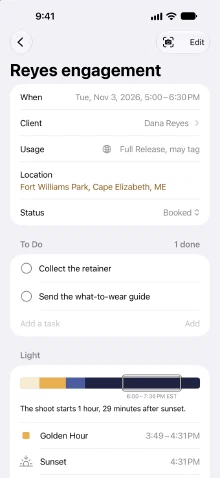
Shoots › + › New Shoot, or New Shoot on a client’s page. Set the client, when, how long, the location, the status and the fee you agreed. Deposits and the balance go on the shoot’s page once it’s made.
Pick a template under Start From and the shoot gets its poses, gear list, fee, length and delivery date. Type the location the way you’d search for it in Maps, so CatchLight can show its golden hour.
A shoot’s page also holds a moodboard (a Pinterest board or shared album link, plus up to 12 reference images), a gear list to pack from, notes, and its costs.
What do the shoot statuses mean?#
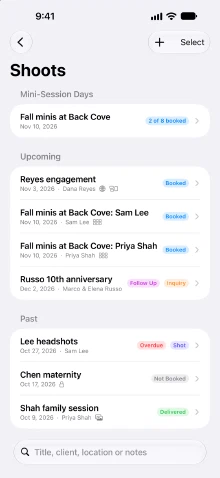
- Inquiry: someone asked. It gets flagged Follow Up if it goes quiet.
- Booked: it’s happening. Booked shoots go on your calendar (if you switched that on) and get the evening-before reminder.
- Shot: done. Money still owed now shows as Unpaid.
- Delivered: the gallery is out.
- Archived: finished and filed away.
- Not Booked: an inquiry that didn’t book. CatchLight asks why: price, dates didn’t work, stopped replying, booked someone else, or other.
Change a status on the shoot’s page, or from a row’s menu in the list (touch and hold on iPhone and iPad, right-click on Mac).
How do I track deposits and payments?#
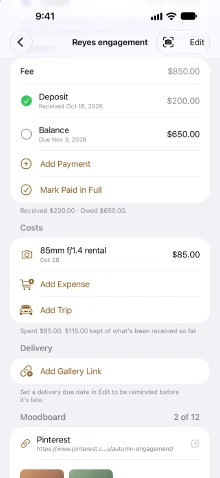
On the shoot’s page, tap Add Payment for each deposit, installment or balance. A payment has a label, an amount, an optional due date, and the date it arrived once it does. The page shows what’s been received and what’s still owed.
Mark Paid in Full marks every expected payment received today and adds whatever’s left of the fee as a final one. In the list, swipe a shoot to the right or open its menu for the same thing.
A shoot is flagged Overdue when a payment passes its due date, and Unpaid once it’s been shot with money still owed. Income counts in the year you received it, not the year of the shoot.
Inquiries and follow-ups#
An inquiry is flagged Follow Up three days after it came in, or three days after you last followed up. Tap Followed Up Today on the shoot to reset the clock. Change the number of days in Settings › Reminders › Follow Up After.
When one doesn’t book, set it to Not Booked and pick the reason. Money’s Bookings section counts them, so you can see whether it’s your price or your dates.
Gallery delivery#
In a shoot’s editor, paste the gallery link from your gallery platform, switch on Delivery Due and set the date you promised. If that date passes before it’s delivered, the shoot shows Gallery Late. Tap Mark Delivered on its page when the gallery’s out. A template can carry your usual turnaround, so every new shoot gets a delivery date on its own.
Photo usage and tagging#
Each shoot records what the client agreed their photos can be used for, under Photos May Be:
- Private: for the client only, not shared anywhere.
- Anonymous: can be shared where no face shows.
- Portfolio: can go in your portfolio and on your website.
- Full Release: can be shared anywhere, social media and ads included.
May Tag Them by Name sits beside it. Both show as a badge on the shoot, so you can check before you post.
Mini-session days#
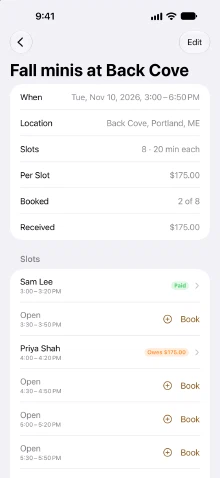
Shoots › + › New Mini-Session Day. Give it a name, a place, the time of the first slot, the slot length, a gap between slots if you want one, how many slots, and the fee per slot.
Tap an open slot to Book it for a client, or make a new client right there. Each booking becomes a shoot of its own, starting with the day’s fee and taking its own payments and pose checklist. Cancel Booking opens the slot again. However many slots it has, the whole day counts as one shoot on the free plan.
A to-do list for each stage#
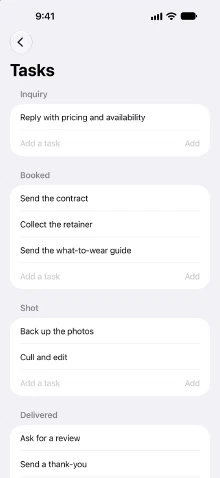
Settings › Tasks holds a list for each status. Booked might be “send the contract, collect the retainer”, Shot might be “back up the card”. Start from Suggestions gives you a few to edit. When a shoot moves into a status, that status’s tasks are copied onto it, and you tick them off at the top of its page. You can add one-off tasks to a single shoot as well.
Templates#
Templates › Add Template. A template is a kind of shoot you do often, like “Family session” or “Headshots”: a starting pose checklist, a gear list, your usual fee and length, and how many days the gallery takes. Pick it under Start From when you make a shoot.
A template only fills in what the shoot doesn’t have yet. It never changes a fee you’ve already agreed, and editing or deleting a template leaves the shoots made from it alone.
Golden hour and the light#
How does CatchLight work out golden hour?#
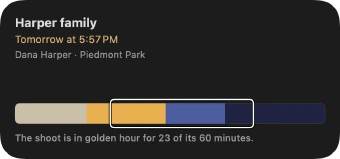
Every shoot with a location shows its light: a strip of the day with golden hour, sunset and twilight, your session framed on it, and one line on how much of the session falls in golden hour. CatchLight asks Apple Maps once where the place is, names the place it found, then works out the times on the device for that date, in the place’s own time zone. A shoot in another state shows that state’s time.
In the evening, golden hour runs from when the sun drops to 6° above the horizon until sunset. In the morning it’s the same in reverse, from sunrise until the sun climbs to 6°. Twilight is civil twilight, from sunset until the sun is 6° below the horizon.
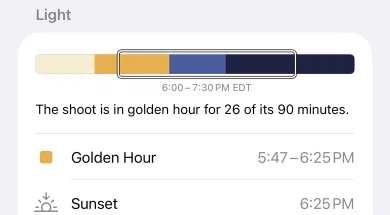
The same light shows in the evening-before reminder and on the Next Shoot widget. You can play with it on the CatchLight page.
Why doesn’t my shoot show sun times?#
- No connection when you made it. Finding a place takes a network, once. Tap Find Sun Times on the shoot when you’re back online.
- It found the wrong place. CatchLight names the place it found under the times. Add a town or city to the location.
- It couldn’t find the place at all. It says so. Try the location the way you’d type it into Maps.
Poses and session mode#
Build a pose library#
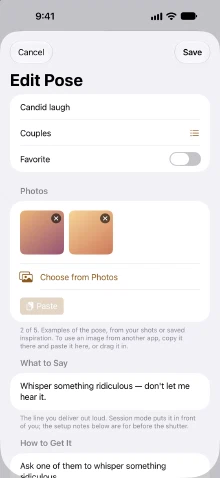
Poses › +. A pose has a title, a category, What to Say (the line you say out loud, shown first in session mode), How to Get It (setup notes for before the shutter), and up to five reference photos. Add photos from your library, the camera, by pasting, or by dragging them in. Star the ones you use most and Favorites Only narrows the list to them.
Starter pose packs#
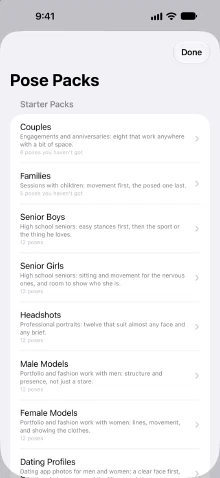
Poses › More › Pose Packs… has eight written packs to start from: Couples, Families, Senior Boys, Senior Girls, Headshots, Male Models, Female Models and Dating Profiles. Every pose comes with a prompt and setup notes. Poses already in your library are skipped, any one pack fits in the free plan, and once they’re added they’re yours to edit, photograph and delete.
Save a photo onto a pose from another app#
On iPhone and iPad, share a photo from Photos, Safari or any other app and pick Save to CatchLight. Choose the pose it’s for, or name a new one, and it’s on that pose the next time you open CatchLight. Instagram shares a link rather than the picture, and the sheet tells you so. Take a screenshot and share that instead.
On a Mac, drag an image file onto the pose, or copy it and paste.
Put poses on a shoot#
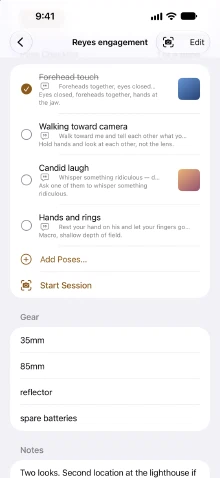
On a shoot’s page, under Pose Checklist, tap Add Poses… and pick from your library, or pick a template that brings its own checklist. You can type a one-off pose straight onto the checklist too, and Add to Library keeps it for next time.
How does session mode work?#
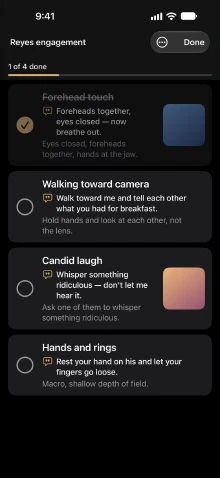
On the shoot’s page, tap Session (the viewfinder button) or Start Session. The checklist fills the screen with big rows, each with its reference photo and what to say, easy to tick one-handed, and your progress pinned at the top. Hide Done clears away what you’ve shot. Dark Screen is on unless you switch it off, so it won’t glare at dusk, and the screen stays awake.
On iPhone, while you’re in the camera, a Live Activity keeps the time since you started, how many poses are done, and the next pose with its prompt on the Lock Screen and in the Dynamic Island. It ends when you close session mode. You can turn Live Activities off for CatchLight in the Settings app.
Share poses with another photographer#
Poses › More › Share Poses…. Name the pack, say what it’s for if you like, pick the poses and export. You get a small file to send however you want. They open it from Poses › More › Pose Packs… › Open a Pack File… and choose what to add. Titles, categories, prompts and setup notes travel. Your reference photos stay with you.
Money#
What Money shows#
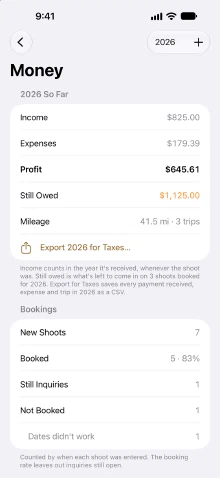
Pick a year at the top. Money shows that year’s income, counted on the day each payment arrived, your expenses by category, profit, what’s still owed on the year’s shoots, and mileage. Under that are the year’s payments, expenses and trips, month by month.
Add expenses and mileage#
Money › Add › Add Expense or Add Trip, or add them under Costs on a shoot’s page.
An expense has an amount, a category and up to two receipt photos. Leave Shoot at None for things the whole business runs on, like gear and software. Pick a shoot for a cost that belongs to one session, like a rental or a second shooter. A trip is the whole distance, there and back, in miles or kilometers.
Expenses and trips are never capped, and they stay when the shoot they were for is deleted.
How do I export my numbers for taxes?#
Money › Export 2026 for Taxes… (it says whichever year you’re looking at) saves one CSV with the year’s income, expenses and mileage. It opens the same in Numbers, Excel or Google Sheets, so it’s ready to hand your accountant. CatchLight gives you the numbers. It doesn’t work out your tax.
Where your bookings come from#
Money’s Bookings section counts the shoots that came in that year: how many booked, how many didn’t, and how many are still inquiries, with your booking rate. Where Bookings Come From splits it by how each client found you, so you can see whether Instagram or referrals actually pay.
Inventory#
Add gear and scan a serial number#
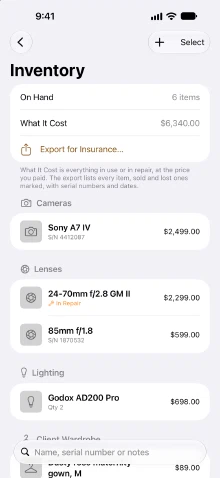
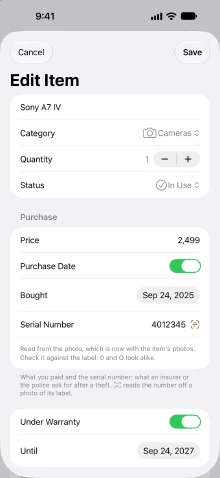
Inventory › +. An item has a name, category, quantity, price, purchase date, serial number, warranty, notes and up to three photos (the item, its serial number, the receipt).
Under Serial Number, tap Scan Serial Number and either Take Photo of Label or Choose from Photos. The text is read on your device. Check it against the label, since 0 and O, and 1 and I, look alike.
An item is a line, not a unit. Thirty SD cards are one item with a quantity of 30, and they count once against the free plan.
Sold something, lost it, or retired it? Change its status instead of deleting it. It moves under No Longer Have, kept as a record and left out of what your kit cost.
Export an inventory list for insurance#
Inventory › Export for Insurance… saves every item as a CSV, with what you paid and every serial number. That’s what an insurer or the police ask for after a theft.
Reminders, calendar, widgets and Siri#
Which reminders can CatchLight send?#
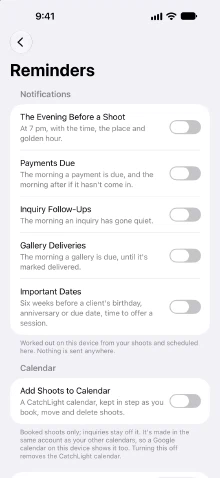
Settings › Reminders. Each one has its own switch, and they only work once you allow notifications:
- The Evening Before a Shoot: at 7 pm, with the time, the place and golden hour.
- Payments Due: the morning a payment is due, and the morning after if it hasn’t come in.
- Inquiry Follow-Ups: the morning an inquiry has gone quiet.
- Gallery Deliveries: the morning a gallery is due, until you mark it delivered.
- Important Dates: six weeks before a client’s birthday, anniversary or due date.
Reminders are worked out and scheduled on your device. Nothing is sent to a server. Tapping one opens its shoot or client.
How do I put my shoots on my calendar?#
Settings › Reminders › Add Shoots to Calendar. CatchLight makes a calendar of its own, named CatchLight, and keeps your booked shoots on it as you book, move and delete them. Inquiries stay off it. It’s made in the same account as your other calendars, so Google Calendar on your phone shows it too. CatchLight never touches your other calendars, and switching this off removes the CatchLight calendar.
Home Screen and Lock Screen widgets#
On iPhone and iPad, touch and hold the Home Screen or Lock Screen, add a widget, and pick CatchLight. Open CatchLight once first so the widgets have something to show.
- Next Shoot (small, medium or Lock Screen): when and where your next booked shoot is, and the light it falls in. Tap it to open that shoot.
- Needs Attention (small or Lock Screen): how many shoots are waiting on you, and what you’re owed.
What can I ask Siri?#
No setup. Say:
- “What’s my next shoot in CatchLight”
- “Add an expense in CatchLight”
- “Log a payment in CatchLight”
They’re also in the Shortcuts app, to build into your own shortcuts, and in Spotlight. They only answer on an unlocked device, and they never name a Discreet client. On a Mac, use them from the Shortcuts app.
Notes and goals#
Notes are for anything that isn’t a shoot: a location to scout, gear to look into, an idea. Notes about one client go on that client’s page.
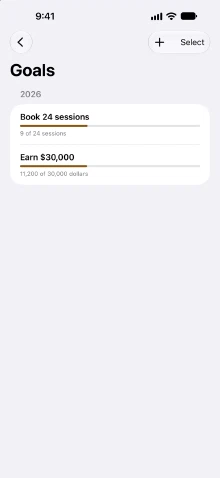
Goals are what you’re aiming at this year, like “Book 24 sessions”. Give a goal a target and a unit and it shows your progress. Add 1 counts one more, and it’s marked Reached when you get there.
Sync, backups and privacy#
Where does my data live?#
On your devices. If you’re signed in to iCloud, it also syncs through a private database in your own iCloud account, which only your devices can read, and it counts toward your iCloud storage. There’s no CatchLight account, no server of mine and no analytics. Every photo you add is re-encoded, which strips its location and other hidden data. The privacy policy covers the rest.
How do I sync between iPhone, iPad and Mac?#
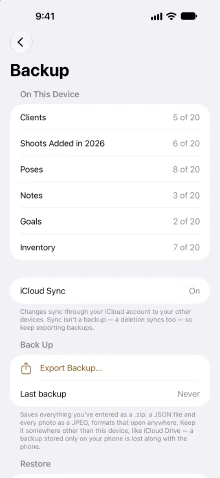
There’s nothing to switch on. Install CatchLight on each device, signed in to the same Apple Account with iCloud, and they stay in step. Settings › Backup shows where sync stands on that device.
Sync isn’t a backup, though. Deleting something on one device deletes it on all of them. Keep exporting backups.
Sync isn’t working. What do I check?#
- Open Settings › Backup on each device. iCloud Sync should say On. Not signed in means that device isn’t signed in to iCloud, and Restricted means iCloud is limited on that device.
- Make sure every device is signed in to the same Apple Account, and that your iCloud storage isn’t full.
- Update CatchLight on every device, so they’re all on the same version.
- Open CatchLight on each device while it’s online and give it a minute or two.
Still stuck? Email me what Settings › Backup says on each device.
How do I back up CatchLight?#
Settings › Backup › Export Backup… saves everything as a .zip: one JSON file with every record, and every photo as a JPEG. Both open without CatchLight. Save it somewhere other than the device it came from, like iCloud Drive or your computer. A backup that only lives on your phone goes when the phone does. The screen shows when you last made one.
How do I restore a backup?#
Settings › Backup › Restore from Backup…, then pick the file. CatchLight first tells you when the backup was made and what’s in it. Restoring adds everything that isn’t already on the device and never changes or deletes what’s there, so restoring the same file twice is harmless. Keep CatchLight open until it’s done. A big backup with lots of photos takes a little while.
How do I move CatchLight to a new iPhone?#
With iCloud sync: sign in to the same Apple Account on the new phone, install CatchLight, open it while you’re online, and your data syncs down.
Without it: export a backup on the old phone, get the file to the new one (AirDrop, iCloud Drive or the Files app), then use Restore from Backup there.
Lock CatchLight with Face ID#
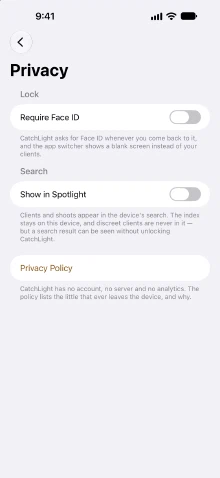
Settings › Privacy › Require Face ID. It says Touch ID or Passcode on devices without Face ID, and Touch ID or Password on a Mac. CatchLight asks whenever you come back to it, and the app switcher shows a blank screen instead of your clients.
Show clients in Spotlight#
Settings › Privacy › Show in Spotlight puts client names and shoot titles in your device’s search. The index stays on the device and Discreet clients are never in it. Bear in mind a search result can be seen without unlocking CatchLight.
Can I export everything?#
Yes, any time. The backup is the export: plain JSON plus your photos as ordinary JPEGs, readable by anything, with or without CatchLight. For spreadsheets there’s the tax CSV in Money and the insurance CSV in Inventory.
The free plan and CatchLight Pro#
What does the free plan include?#
Every feature. It only caps how much you can add:
- 20 clients
- 20 shoots a year, counted by the year each was added. Last year’s shoots never count against this year, deleting one frees its place, and a mini-session day counts as one shoot.
- 20 each of poses, templates, notes, goals and inventory items
Expenses, mileage and payments are never capped. Settings › Backup shows how much of each you’ve used.
What does CatchLight Pro cost?#
$19.99 a year, or the same in your currency, with no trial. It lifts every cap and that’s all it does, since the free plan already has every feature. Subscribe from Settings › CatchLight Pro, or from the alert you get at a cap. One subscription covers your iPhone, iPad and Mac on the same Apple Account.
Restore a purchase#
Settings › CatchLight Pro, then Restore at the top right, signed in to the Apple Account you bought it with. If that screen says the App Store can’t offer CatchLight Pro right now, you’re probably offline. Your data is fine. Try again once you’re connected.
How do I cancel CatchLight Pro or get a refund?#
Cancel any time from Manage Subscription on the CatchLight Pro screen, or from Subscriptions in your Apple Account settings. Refunds go through Apple, at reportaproblem.apple.com. Canceling never touches your data. Everything you added stays, even past the free caps. Only adding more waits until you’re under the cap again.
Still stuck?#
Email me at catchlight@amerkhalid.com. Tell me which device you’re on, its iOS or macOS version, and what happened. A screenshot helps a lot. I read everything, even if it takes me a few days to write back.